
 Our solutions
 Integrations
 Entrepreneurs & SMEs
 Chartered accountants
 Acomba
 SigaFinance
 AgExpert
 Get a free demo
 Talk to an expert
 Automation
 Intelligent search and document filing
 Financial indicators
 Dairy Indicators
 Mobile app
 Annotations
 Access management
 Data capture
 Intelligent data recognition
 Automatic transfer to your accounting software
 Electronic Data Interchange (EDI)
 Real-time dashboard
 12 months overview
 Personalized indicators
 The real impact of milk prices
 Synchronization of your dairy data
 Eight essential indicators
 Understand your margins
 Document digitization
 Seamless and secure integration
 Informative annotations
 Collaborate as a team
 Centralized information
 Two types of annotations
 Multichannel notifications
 Role assignment
 Secure your information
 Predefined access levels
 Useful links
 Help & Support
 Blog
Blog Customer login
 FAQ
FAQ Technical support
 Contact us
Transaction search
Modified on: September 16, 2025The Transaction Search feature allows you to query all validated purchase and sales invoices in Aleop, that is, all accounting entries recorded following full validation. In other words, it includes any document that has passed the validation step.
Search criteria
This search is based on a multi-criteria filtering engine that allows you to quickly target one or more transactions using specific parameters. The available criteria are as follows:
- Date: Ability to filter by a specific date or a date range, corresponding to the transaction date. The available options are:
- Last 7 days
- Last 31 days
- Last 12 months
- Current financial year
- Last 4 financial years
- Interval
- Product: Allows you to search for transactions in which a specific item number has been used, making it easier to track related purchases, sales, or inventory.
- Partner: Filter based on the supplier or customer associated with the transaction (business partner).
- Aleop account: Allows you to isolate transactions associated with a specific account as defined in the Aleop chart of accounts.
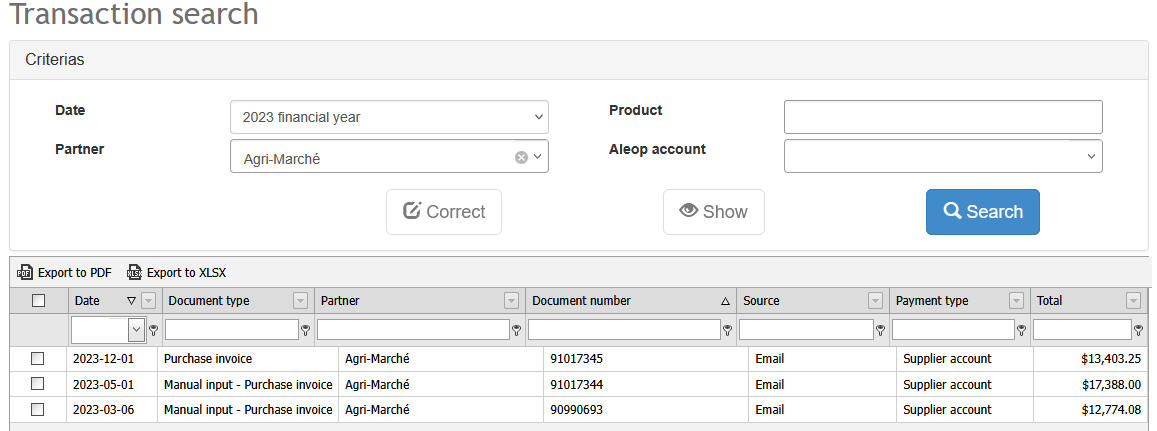
These criteria can be used individually or in combination to enhance search accuracy. The tool is designed to provide quick and structured access to validated data, whether for accounting follow-up, audit purposes, or to support the generation of internal reports.
How to perform a search
Transaction searches in Aleop are carried out using the four available criteria: Date, Partner, Product, and Aleop Account. Among these, only the date criterion is mandatory to obtain a result.
Steps to follow:
- Access the search tool
From the main menu, click on the Transaction search icon. - Enter the date
In the Date search criterion, select one of the available date range options. - Add one or more additional filters
It is possible to refine the search by adding one or more additional filters. Besides the date, you can narrow down the results using an item (keyword), a partner (supplier or customer), or a specific Aleop account. These filters are optional but help you quickly pinpoint a specific transaction when multiple results fall within the same period. - Launch the search
Click the “Search” button to display the results as a list. By default, transactions are sorted from the most recent to the oldest. - Apply sub-filters to the results
Once the results are displayed, you can apply additional filters to narrow down to a specific transaction. You can filter by exact date, document type, document number, source, payment method, or amount.
Additional features
Partner correction
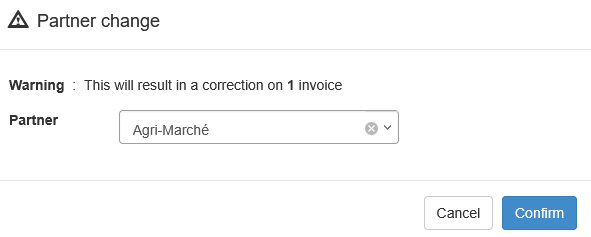
The Correct button allows you to modify the identification of a partner (customer or supplier) associated with a validated transaction. When you use this function, all documents linked to the transaction are moved to the folder of the newly selected partner. If this partner does not yet have a folder in the binder, one is automatically created. The original partner’s folder is not deleted or renamed: it remains unchanged and retains any other documents it may contain.
View a transaction
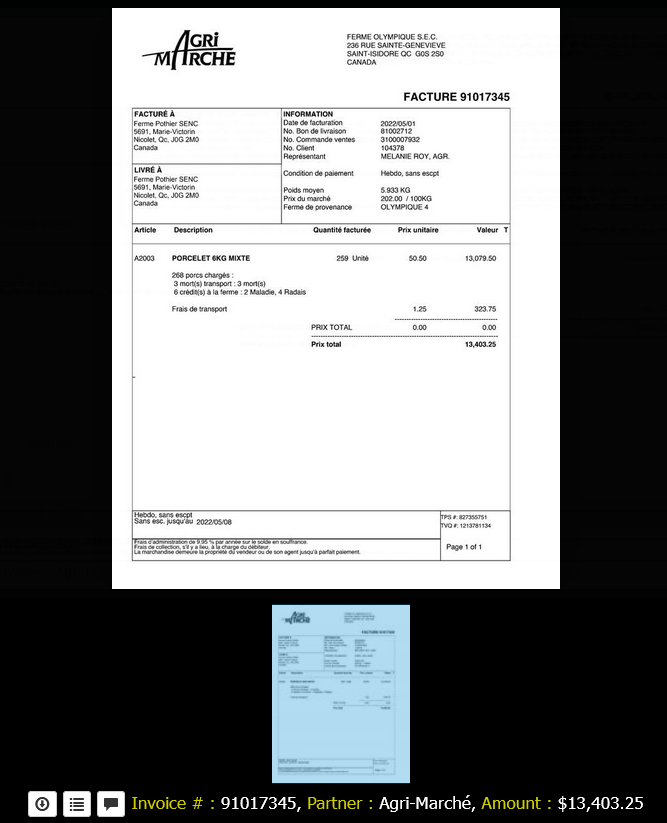
The Show allows you to access the full details of a validated transaction (purchase or sales invoice) in read-only mode.
In addition to basic viewing, three features remain available from the interface:
- Add an annotation: Possibility to add a comment or a note to contextualize or document the transaction.
- Document download: All attached files can be downloaded locally for archiving or sharing. Note: for EDI documents from EPQ and Sollio, the download button is replaced by a button that takes you directly to the document in their respective document portal. Thus, some EDI documents are only accessible through the EDI partner’s portal.
- Viewing history: Access to the full transaction history, including any modifications made prior to validation, successive validations (if applicable), and actions performed on associated documents.
Export transaction list
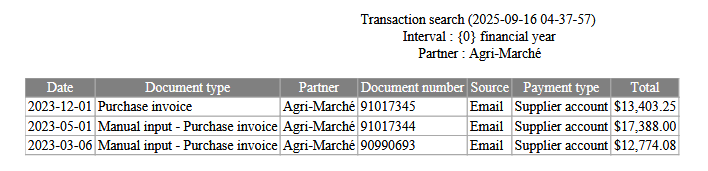
The function Export allows you to generate a PDF or XLSX file from the list of validated transactions, based on the applied search criteria (date range, product, partner, Aleop account).
- PDF: Static format for archiving or printing.
- XLSX: Spreadsheet format for data analysis or processing.
The export includes the columns visible on the screen and allows you to keep or share accounting data in a structured way.
Helpful information about result display
The displayed results are related to validated transactions
Only transactions that have been validated in the system will appear in the search results. Documents that are pending or being processed are excluded.
Refine the search within the displayed results
Once the results are generated, you can further refine them using the filters located in the column headers. You can filter by document type, Partner, document number, source, payment method or total.
Viewing the document linked to a transaction
When a PDF document contains multiple pages (for example, a contract attached to an invoice), only the portion related to the accounting transaction is visible in the interface. To view the entire document, you need to download it. Aleop never alters the original content of the file.
Printing a document
Printing cannot be started directly from the interface. You must first download the document, then open the file in your computer’s downloads folder to print it using your usual PDF reader.
Note: some browsers allow you to print PDFs directly without using a PDF viewer application.