
 Our solutions
 Integrations
 Entrepreneurs & SMEs
 Chartered accountants
 Acomba
 SigaFinance
 AgExpert
 Get a free demo
 Talk to an expert
 Automation
 Intelligent search and document filing
 Financial indicators
 Dairy Indicators
 Mobile app
 Annotations
 Access management
 Data capture
 Intelligent data recognition
 Automatic transfer to your accounting software
 Electronic Data Interchange (EDI)
 Real-time dashboard
 12 months overview
 Personalized indicators
 The real impact of milk prices
 Synchronization of your dairy data
 Eight essential indicators
 Understand your margins
 Document digitization
 Seamless and secure integration
 Informative annotations
 Collaborate as a team
 Centralized information
 Two types of annotations
 Multichannel notifications
 Role assignment
 Secure your information
 Predefined access levels
 Useful links
 Help & Support
 Blog
Blog Customer login
 FAQ
FAQ Technical support
 Contact us
Mobile app
Modified on: June 8, 2026The Aleop mobile app is designed to allow businesses to digitize their purchase and sales invoices directly from their mobile device, anytime and anywhere. This solution aims to eliminate the manual steps involved in collecting and transferring accounting documents, while ensuring their immediate integration into your Aleop workspace.
Documents captured via the mobile app are automatically transferred and can either be sent for data extraction automatically or held for classification in your Aleop environment in under a minute. The app is available for free on the Google Play Store and the App Store.
Key features
The Aleop mobile app includes a targeted subset of essential technical features, focused on capturing, annotating, classifying, and securely transmitting your purchase and sales invoices. Every available action is designed to ensure full compatibility and immediate synchronization with your Aleop environment. The app’s key features include:
- Document scanning: Scan your business documents efficiently using the built-in camera module, with automatic format optimization for digital processing.
- Annotation: Add a note directly on the file to better retain information or communicate with a team member.
- Classification: Select the document type to send it directly to data extraction.
- Secure transmission: File transmission via encrypted protocol, ensuring data integrity and confidentiality during transfer to Aleop servers.
Why use the Aleop app?
The Aleop mobile app is specifically designed to streamline document management in the field. By reducing intermediate steps and ensuring immediate, secure transmission, the app allows users to quickly add documents to the Aleop work environment.
Never lose a document again
Scan your invoices and receipts as soon as the transaction happens—at the office, on the go, or at a supplier’s location. Perfect for teams in the field: everyone can send documents directly, without delay.
Aleop-certified mobile app
Use an official solution designed to work exclusively with Aleop. Avoid compatibility issues or formatting problems caused by third-party apps.
Secure data transmission
All documents are transmitted directly from the mobile app to Aleop’s secure servers, with no intermediaries. There is no local storage on the device nor on external cloud services. For example, unlike sending by email—where a copy of the document can be stored by the service provider (such as Gmail, Outlook, or Yahoo)—using the app ensures that no copies are made outside Aleop’s secure environment.
Direct integration with the Aleop workflow
Once scanned, the documents are automatically sent for extraction in Aleop, based on their type. No action is required at the office — the documents arrive ready to be processed, making administrative follow-up easier.
Comparison with a third-party app
| Criteria | Aleop Mobile | Third-party apps |
Direct synchronization with Aleop | Yes | No |
Accounting classification at the time of capture | Yes | No |
Image quality | Resolution control and image optimization | No specific image processing |
Adding annotations | Yes | No |
Data access and storage | Data hosted on Aleop’s secure servers | Local storage, external cloud, or based on the app’s settings |
Aleop-certified app | Yes | No |
| Automated accounting processing after capture | Yes | No |
Initial setup
The Aleop mobile app offers a quick start with a simplified setup process. Upon installation, you just need to log in to your Aleop account to ensure immediate document synchronization.
App download
The Aleop mobile app is available for free on the Google Play Store (Android) and the App Store (iOS).
To install it:
- Go to your device’s app store.
- Start the installation by tapping on Install (Android) or Get (iOS).
- Once installed, open the app from the icon added to your home screen.
Minimum system requirements :
- Android 9 or higher
- iOS 12 or higher
- Active internet connection (Wi-Fi or mobile data)
Logging into your account
When you open the app for the first time, it asks for your existing Aleop username:
- Enter your email address and your password used on Aleop.
- Click Login to link your mobile app with your account.
- Once you're logged in, you're ready to scan and send your documents.
Note: A connection is required to sync your documents with your Aleop environment. Once your email is entered, the app remembers it for future logins. For security reasons, the password is not saved.
Data Security
The Aleop mobile app applies the same security standards as your Aleop account:
- Secure Authentication: Your login information is protected by SSL/TLS encryption during transmission.
- Secure Transfer: Captured documents are sent exclusively through encrypted channels to Aleop’s secure servers.
- No Data Stored Locally: Documents are not stored on your device after successful transmission, thus reducing the risk of data loss or theft.
Note: Third-party scanning apps pose a higher risk of errors. Therefore, we plan to reject any documents sent through these types of apps in the near future to ensure better quality, security, and traceability of documents submitted to Aleop.
Steps to send a document
This section outlines the steps to efficiently enter and send a purchase or sales document through the app, all the way to its full integration into your Aleop account.
1. Open the app and log in
The login interface allows you to access your Aleop account using your credentials. Make sure you have the appropriate permissions: owner, accountant, or mobile document scanning (see the guide Access management for more details) to access the app’s features. From this screen, you can also access the web version of Aleop as well as the privacy policy.
2. Select the company and document type
After logging into your Aleop account, select the relevant company from the available list, then choose the type of document to send:
- Purchase invoice : pour une facture ou un reçu d’achat.
- Manual input – purchase invoice : pour une facture ou un reçu d’achat manuscrit ou en mauvaise état.
- Sales invoice : pour une facture de vente.
- Manual input – sales invoice for a handwritten or hard-to-read sales invoice.
- To be determined: for any other type of document. It will automatically be sent to the Mobile section of the Document classification.
3. Document Scanning
When capturing an image, make sure the device is positioned as perpendicular to the document as possible and at a close distance, without cutting off the edges. This helps reduce distortion and ensures optimal image quality for analysis.
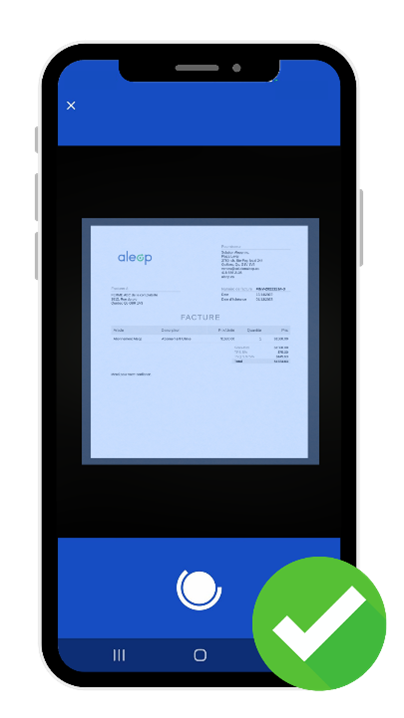
The capture is triggered automatically once the invoice is properly framed and clearly visible to the camera. However, in some cases, you may need to manually press the round button at the bottom center. Automatic edge detection may not work depending on lighting conditions or the quality of the document.
Once the document is scanned, several options are offered to you before sending it to your Aleop account:
- Add: Scan another page of the same document to include in the submission.
- Try again: Retake the capture if the image quality is insufficient.
- Corner icon:
 Apply automatic alignment if the document is tilted.
 - Manual alignment icon:
 Manually adjust the corners to straighten the invoice.
 Apply automatic alignment if the document is tilted.
 Manually adjust the corners to straighten the invoice.
4. Send the scan
After scanning one or more pages of the same document, all that’s left is to send it to Aleop. Before sending, you have the option to change the document’s name and add an annotation. This information will be linked to the document and will follow it throughout its processing in Aleop. You then need to select the appropriate format for the scan:
- Letter: For an invoice presented in letter format (8.5 x 11 in), often used for a more detailed or customized layout.
- Coupon: For a standard invoice in portrait format.
- Other: For any other format or specific template (e.g., check format).
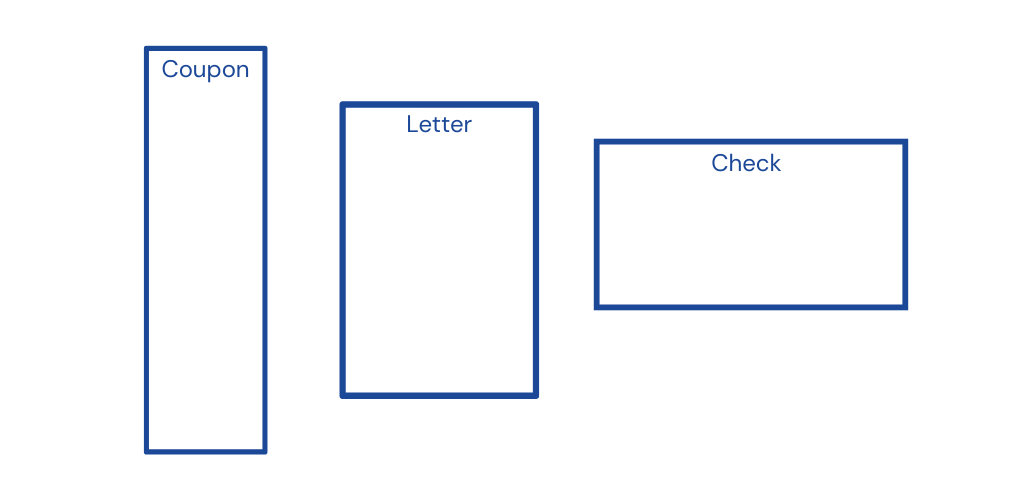
Note The app also supports documents in landscape orientation. This means you can take a photo of this type of document while holding your phone in portrait mode—the image will automatically be rotated and sent in landscape orientation. There's no need to rotate your mobile device before taking the photo
5. Send confirmation
Once the document has been successfully sent, a confirmation message will appear on the screen to inform you. You will then be automatically redirected to the scanning step so you can send another document, if needed.

App Specificities
Requirements before scanning a document
Before scanning a document through the app, several requirements must be met to ensure optimal scanning and efficient processing.
Check the Internet connection
Make sure you have access to WiFi or an LTE network to be able to send documents to your Aleop account. A stable connection is essential to ensure proper document transfer and avoid any interruptions in the process.
Update the app
Make sure the app is up to date to avoid any malfunctions. Regular updates not only fix potential bugs but also improve features and performance.
Check the readability of the document to be scanned
The invoice must be clear and legible, with easily readable information (amount, date, supplier). If any part of the content is unclear, it could lead to data extraction errors or even cause the document to be rejected. Completing the steps to send the document via the app does not guarantee that it will be correctly read by Aleop’s technology.
Check format compatibility
The scanned file must conform to a standard physical format to ensure optimal processing within the app. The resulting file should be presented in an elongated rectangular format, like a typical invoice, or on a letter-sized sheet (8.5 × 11 inches / 216 × 279 mm). Adhering to these dimensions helps prevent issues with framing, distortion, or cropping during the rendering and analysis of the document.
Scanning permissions
To use the mobile app, you must have access rights to the mobile scanning feature in Aleop. Without these rights, sending documents through the mobile app will not be possible. If you don’t have access, please contact your account administrator to request the necessary permissions.
Note An OCR license is used only for documents scanned via the Aleop mobile app when the types "Purchases" or "Sales" are selected. If the company receiving the document no longer has available licenses, the document will be redirected to the classification step on the Aleop web portal. Document submission will not be interrupted due to a lack of licenses, but the documents will not be automatically sent for extraction.
Practical tips
Complement to a scanner
The Aleop mobile app complements traditional scanning tools. It is especially suited for teams whose employees incur expenses in the field, such as fuel purchases, restaurant meals, or the acquisition of various equipment. By enabling immediate capture of invoices at the source, it reduces the risk of document loss and speeds up their integration into Aleop’s standardized accounting process. When available, using a scanner remains faster and better suited for processing large volumes.
One page at a time
The Aleop mobile app is designed to scan one page at a time. It is not recommended to position the device horizontally to capture two documents simultaneously. This type of use harms image quality, complicates automatic information recognition, and may cause errors during processing. To ensure optimal reading, each page must be scanned individually, making sure it is well framed and clearly visible.
The page addition feature, however, allows you to easily create a multi-page document if an invoice spans more than one page. It is important not to try to group multiple invoices into a single document to send them all at once. If the system detects multiple invoices in one submission, the document is very likely to be rejected. Each invoice must be submitted as a separate document, even if that document contains multiple pages.
Document processing
The Aleop mobile app allows scanning one document at a time, whether it contains one or multiple pages. Once this document is sent, you can then scan another. Unlike Aleop Client or a desktop scanner, there is no concept of a “batch” submission in the mobile app—each document is processed individually, in sequence.
Works on tablet
The Aleop app is compatible with tablets, as they use the same operating systems (Android and iOS) as mobile phones. However, although a tablet can display a larger image on the screen, it does not necessarily offer an advantage over a phone. The lenses are often less performant, and the device can be harder to stabilize during capture. Using a mobile phone generally remains better suited for scanning.
Application limitations
The mobile app does not replicate the full Aleop experience. It is designed exclusively for document scanning and does not provide access to the other features of the platform.
Internet connection required
The Aleop mobile app requires an active internet connection to function. Document capture and upload to the Aleop platform are only possible when the device is connected via Wi-Fi or a cellular network. Without a connection, it is not possible to scan or transmit documents.
Annotations
The Aleop mobile app allows you to add a general annotation when capturing a document. This annotation is automatically integrated into the file and synchronized with your Aleop account, where it remains accessible and editable. It enables you to attach additional information directly to the document, such as explanations or details about a transaction.
Annotations created on mobile are fully integrated into the document validation workflow of the Aleop ecosystem, ensuring smooth and centralized tracking of information. (See the guide Annotations for more details)
Troubleshooting
If you experience issues with scanning invoices, sending documents, or syncing with your Aleop account, technical checks can be performed before contacting support. These steps help quickly identify the source of the problem (connection, permissions, app version) and resolve most common issues without interrupting usage.
Common issue resolution
In case of an issue while using the Aleop mobile app, the following fixes can resolve the most common problems without external intervention.
Authentication failure
Check the credentials entered. Make sure an active Internet connection is available (Wi-Fi or mobile data). If the issue persists, reset your Aleop password from your computer.
Document transmission error
Check the stability of the network connection. Ensure the app has the necessary permissions (camera and storage access). Restart the app and try the operation again.
Blurry image
Clean the camera lens to remove any obstruction. Ensure the document is well-lit, fully framed, and readable on the screen. Adjust the angle if necessary and retake the capture.
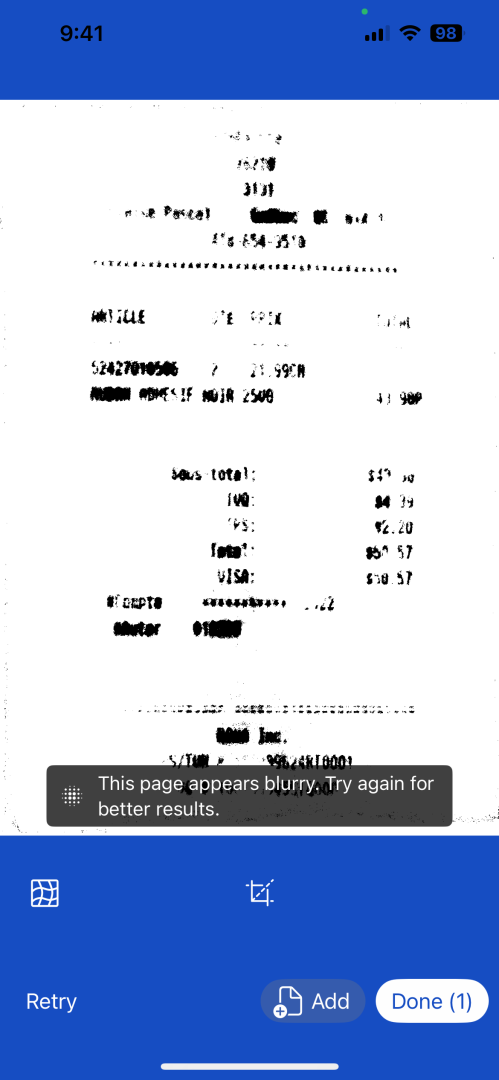
No synchronization with your Aleop account
Force stop the mobile app. Check that the latest version is installed via the app store. Restart the app and initiate a new synchronization.
Poor capture quality
Make sure the document is close enough to the device and that the text is clearly legible. Check that the lighting is even, with no glare or shadows. Keep the device steady when taking the photo. Retake the shot if the text appears unclear on the screen.
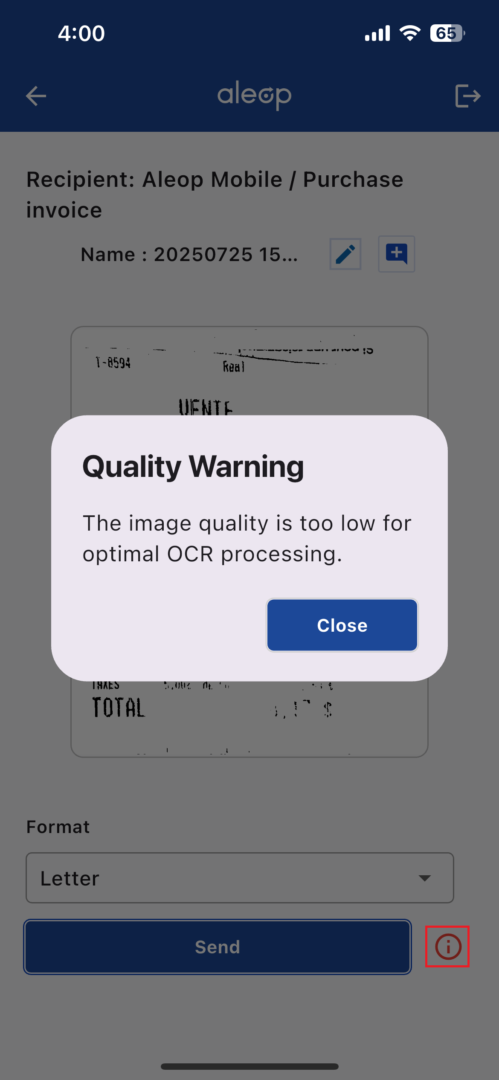
Contacting technical support
If your issue persists, please contact technical support:
- On Aleop web: Log in to your account and click on the link Need help at the bottom of the page.
- Phone : 1-855-484-4040
To help resolve the issue, please provide the following information when requesting support:
- Model and operating system of your mobile phone.
- Technical description of the issue encountered.
- Screenshots or related error messages, if applicable.