
 Our solutions
 Integrations
 Entrepreneurs & SMEs
 Chartered accountants
 Acomba
 SigaFinance
 AgExpert
 Get a free demo
 Talk to an expert
 Automation
 Intelligent search and document filing
 Financial indicators
 Dairy Indicators
 Mobile app
 Annotations
 Access management
 Data capture
 Intelligent data recognition
 Automatic transfer to your accounting software
 Electronic Data Interchange (EDI)
 Real-time dashboard
 12 months overview
 Personalized indicators
 The real impact of milk prices
 Synchronization of your dairy data
 Eight essential indicators
 Understand your margins
 Document digitization
 Seamless and secure integration
 Informative annotations
 Collaborate as a team
 Centralized information
 Two types of annotations
 Multichannel notifications
 Role assignment
 Secure your information
 Predefined access levels
 Useful links
 Help & Support
 Blog
Blog Customer login
 FAQ
FAQ Technical support
 Contact us
Learning profiles
Modified on: October 16, 2025Learning profiles allow you to define and save accounting learning rules, either for a specific partner or for a category of transaction.
They act as configurable templates used to automate certain suggestions during document validation. A template can, for example, automatically suggest one or more general ledger (GL) accounts, add entry lines, or help configure allocations across different entities or expense types.
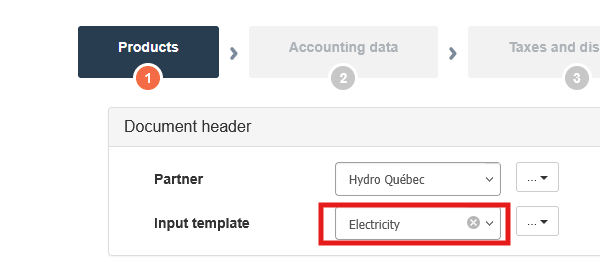
Usage examples
Learning profiles help manage complex or recurring billing scenarios efficiently. Here are three typical situations where using them optimizes accounting allocation and reduces the risk of errors.
Case 1: A supplier is generally associated with a recurring expense (e.g., office supplies), but some of their invoices relate to capital expenditures (e.g., building construction). The entry template makes it possible to manage this change in context.
Case 2: Some suppliers issue invoices with amounts that need to be split across multiple cost centers, buildings, or expense categories. In some cases, it may also be necessary to separate personal and business portions according to a defined ratio, to accurately reflect the client’s accounting reality.
Case 3: A supplier invoices goods or services intended for different departments or projects within the company. The entry template allows the amounts to be distributed across multiple cost centers to ensure accurate expense tracking.
Types of learning profiles
Depending on the level of precision or need for reuse, a learning profile can be linked to a specific partner or designed for more general use. Each type addresses different accounting contexts and helps automate data entry based on the characteristics of the transactions being processed:
Partner
The template is only available for the partner (supplier or customer) for whom it was created. It is recommended when accounting entries are specific to a given partner.
Global type
The template is accessible to all partners and is specific to a type of expense or revenue. This type of template allows a transaction to be posted directly to a general ledger (GL) account without linking it to a specific supplier. It is often used for partners with similar profiles, such as:
- Gas stations
- Veterinarians
- Hardware stores
- Grocery stores
Learning profile list
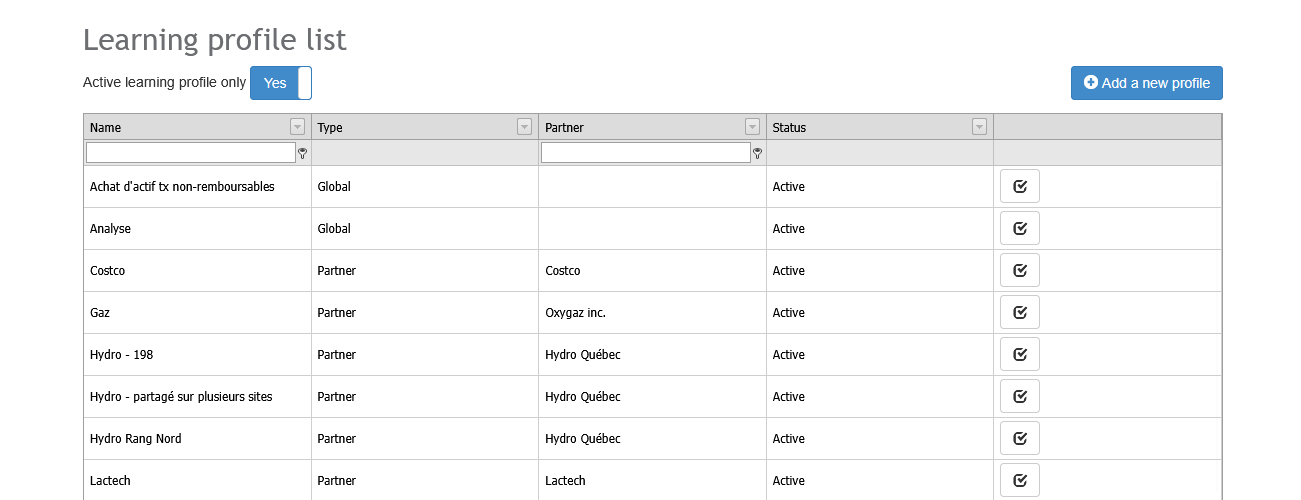
The list of learning profiles is accessible via the Tools > Learning profile list menu. This submenu is visible to the RGA and Accountant profiles, as well as the Training and Support groups. The list displays the profiles created for the current company.

The user can filter or sort the list by various columns (name, type, associated partner, status). For learning profiles of the “Partner” type, the name of the associated partner will be displayed and searchable. By default, only active templates are visible, but it is possible to include deactivated templates in the view.
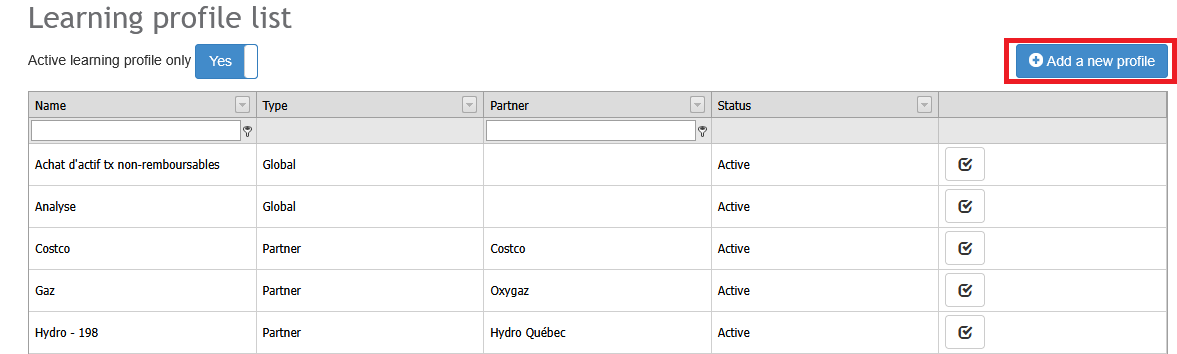
The “Add a new profile” button allows you to create a new template. An existing template can be viewed or edited by clicking the  button to the right of the row.
Creation of a learning profile
It is possible to create a learning profile directly from the list of profiles or during the validation of a document. The process allows you to save a reusable data entry configuration to automate the processing of similar documents.
From the list of learning profiles
In the menu Learning profile list, click on the button Add a new profile. Aleop will display a configuration form.
- If the selected type is Partner, an additional field will allow you to choose an Aleop partner.
- When saving, the learning profile will be linked to the selected partner.
From the validation of a document
At step 1 of the validation, click on the New button. A form will appear to define the learning profile settings.
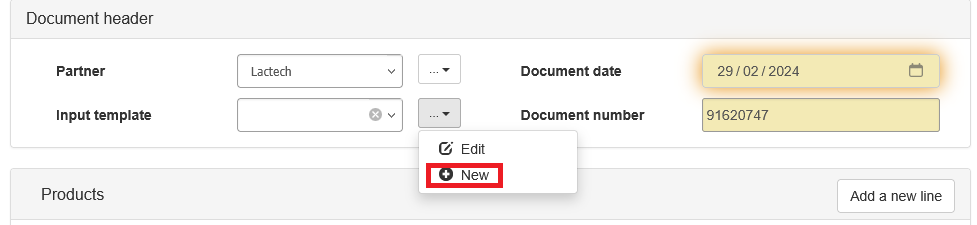
- The active partner on the current invoice will be automatically linked to the learning profile (if the type is "Partner").
- Once the profile is saved, it will be automatically applied to the current invoice.
Configure an input template
Configuring a learning profile allows you to automate a large part of the accounting work in Aleop. By linking processing rules to a document type or a supplier, you simplify the entry of recurring transactions and improve the consistency of your records. The profile is built progressively as you validate invoices: it remembers the choices you make and automatically suggests them the next time.
There are two types of learning linked to a profile:
Default learnings
This refers to an accounting entry that will be suggested for all unrecognized items on an invoice. To configure default learning:
- Go to the “Accounting data” step of the validation.
- Select one or more lines by checking the boxes.
- Click on the “Repeat account information” button.
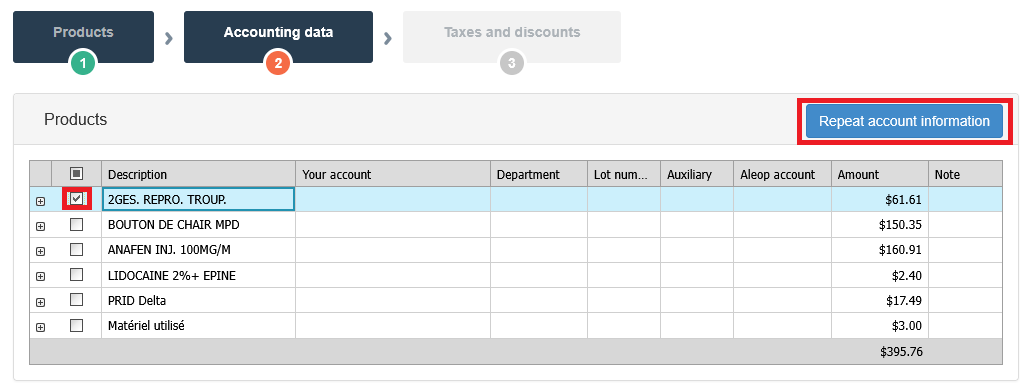
- Enter the account to assign to the item.
- Click on the “Confirm” button.
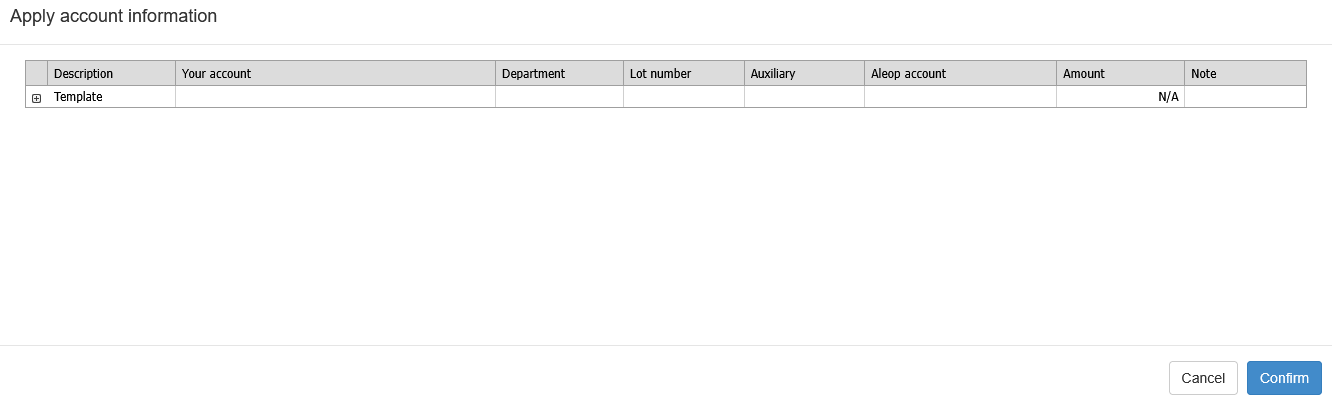
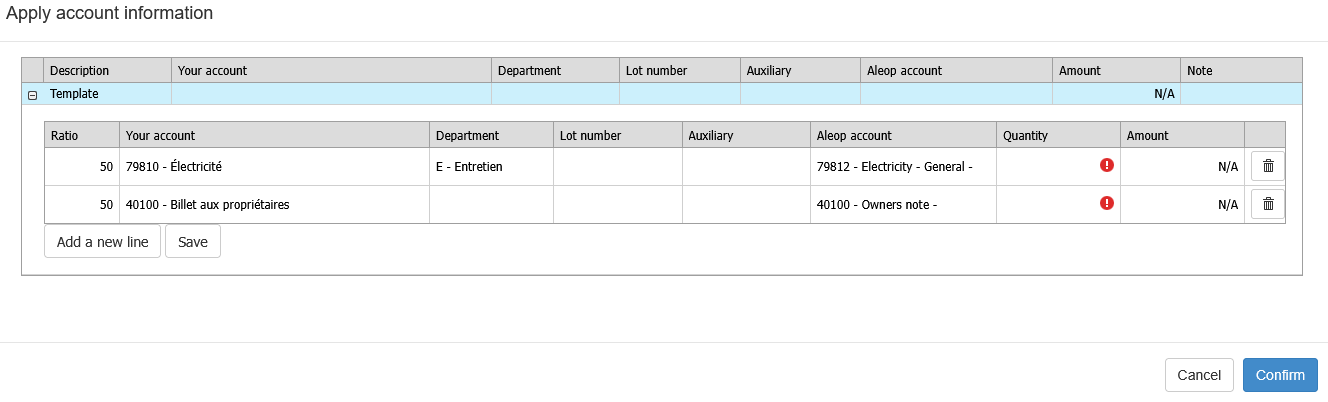
- You can create a default line split by clicking on the “+” to the left of the Template — this is useful when distributing the amount across multiple accounts or separating out tax amounts.
Line learnings
Learning profiles also remember the specific entries you assign to an item. Here's an example of assigning a “Veterinary and Medications” profile to a veterinary invoice.
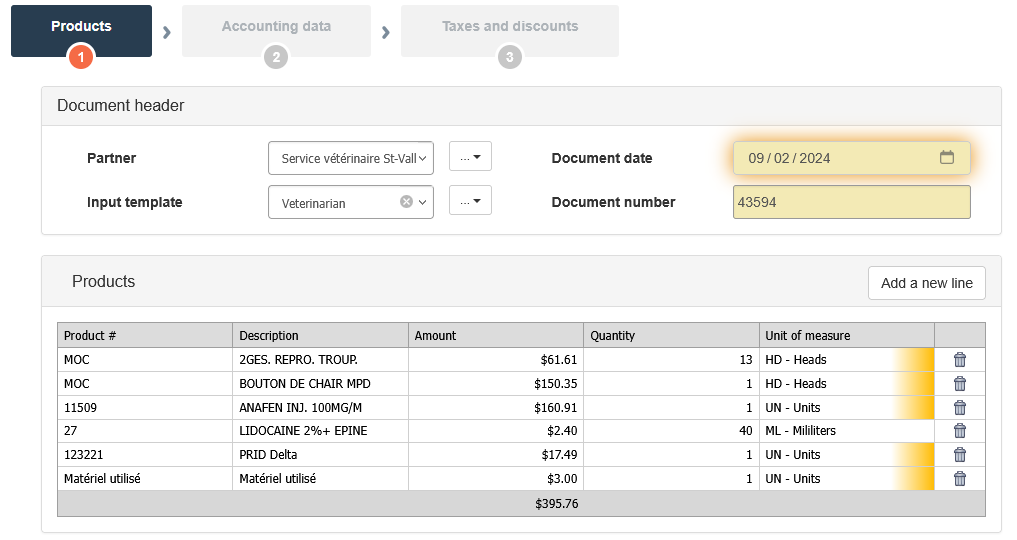
By default, the “Medications” account is suggested for all lines on the invoice. However, if certain items, like MOC, should instead be assigned to the “Veterinary” account, this can be specified during validation.
At the second step of validation, you can change the account on the relevant lines and replace “Medications” with “Veterinary.
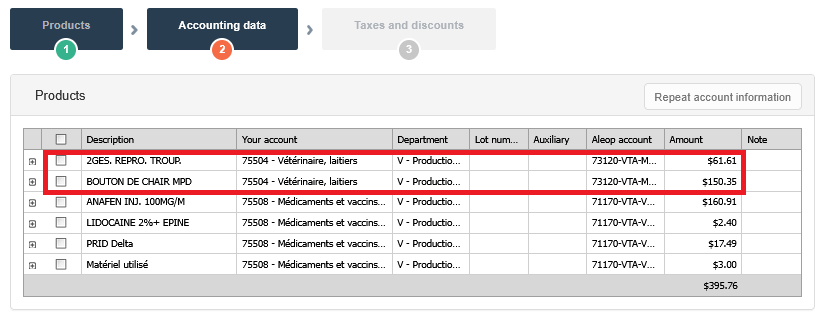
Once the invoice is validated, Aleop will automatically remember that for this item (MOC) from this supplier, the correct account to use is “Veterinary.” This assignment rule will be applied to future similar entries.
In short, learning profiles allow Aleop to suggest default entries for all invoice lines, while still giving you the flexibility to customize certain ones based on specific items or suppliers.
View and edit learning profiles
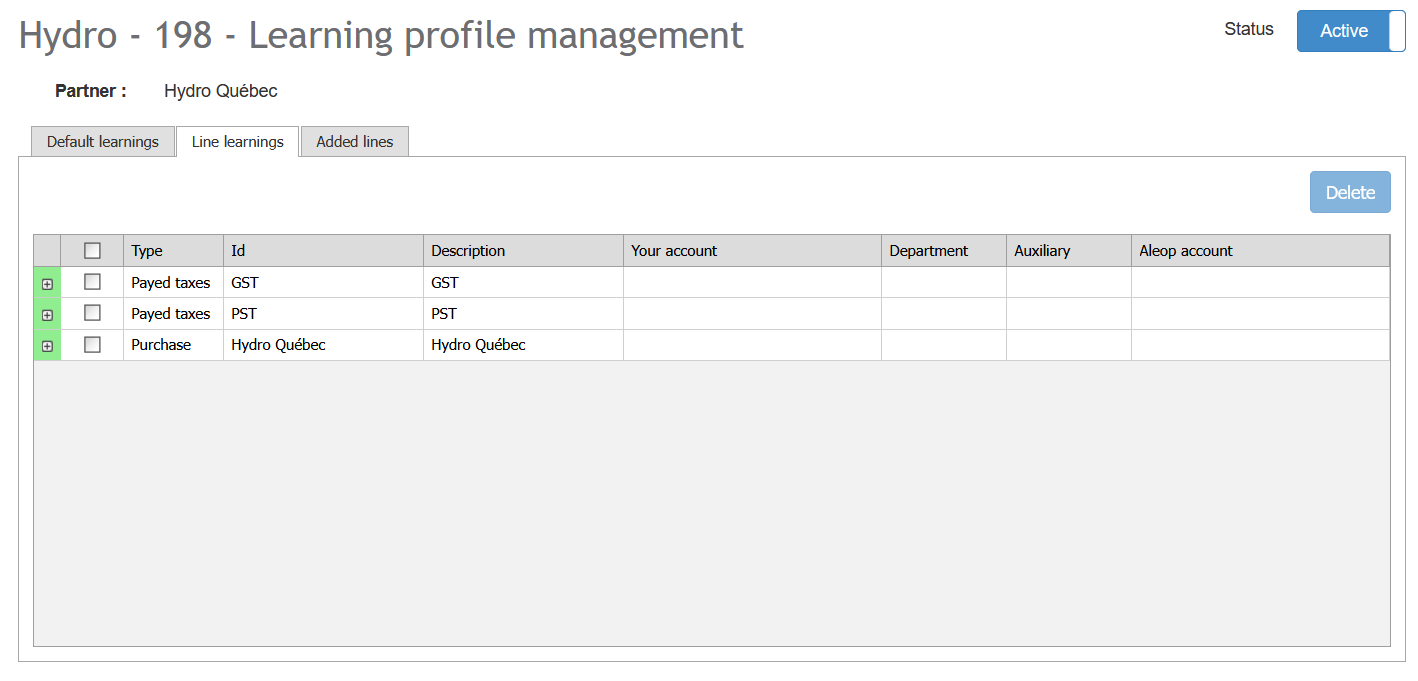
The view screen displays the behaviors associated with a specific template, including:
- Display the list of default learning rules, based on the line type (purchase, sale, or deduction line).
- Display the list of item-specific learning rules, based on the line type (purchase, sale, deduction, tax, or discount line).
- Display the lines to be added automatically when the template is used on a document during validation.
For templates of the Global type, it is possible to search for and select a partner to view the learning rules specific to that partner. Default learning rules and automatic lines are not tied to any specific partner; they are applied regardless of the partner selected during validation.
It is possible to:
- Activate or deactivate a learning profile.
- Delete a default learning or an item-specific learning.
- Standardize an item learning with the default version (if they differ).
- Delete an automatically added line.
No creation or modification of learning rules is possible on this screen. These elements are updated automatically during validations.
An entry template cannot be permanently deleted. It can be deactivated if needed.
Deletion of automatic lines during validation
During document validation, automatic lines generated by the entry template can now be temporarily deleted without modifying the template itself. This deletion applies only to the current document—the line will still be automatically reinserted when the same template is used in another document.
To permanently delete an automatic line, the user must open the learning profile’s edit screen and remove the line from the template’s definition.
This feature allows you to:
- reduce the number of unnecessary lines in certain contexts.
- lighten invoices.
- improve readability when searching for transactions.
Decision-making process
During document validation, Aleop uses a decision tree to automatically determine which accounting learning rule to apply, based on the available entry templates.
A learning profile allows pre-recording of accounting rules specific to a supplier or transaction type. It can be applied globally (all suppliers) or specifically (a particular supplier).
The process unfolds as follows:
- Automatic recognition
If a product included in the invoice has already been recognized, the product-specific learning is automatically applied without any intervention. - No recognition
Si aucun produit n’est reconnu, Aleop ne suggère pas automatiquement de modèle : il doit être sélectionné manuellement avant l’application de l’arbre de décision. - Use of a profile
- If an existing profile is selected and has already been used for this supplier and product, the specific learning is applied.
- Otherwise, two options are available:
- Default learning: an accounting entry is applied to all unrecognized items. If default learning is already configured on the template when the document is opened for validation, the information is automatically applied to each line where the product or supplier has never been encountered. Otherwise, it must be added manually during the current validation using the "Repeat an account" button.
- Item-specific learning: a specific operation is defined for one or more items.
- Adding targeted learning
Once the default profile is created, you can add specific learning rules for certain items to handle special cases (e.g., capital assets, special allocations, etc.).