
 Our solutions
 Integrations
 Entrepreneurs & SMEs
 Chartered accountants
 Acomba
 SigaFinance
 AgExpert
 Get a free demo
 Talk to an expert
 Automation
 Intelligent search and document filing
 Financial indicators
 Dairy Indicators
 Mobile app
 Annotations
 Access management
 Data capture
 Intelligent data recognition
 Automatic transfer to your accounting software
 Electronic Data Interchange (EDI)
 Real-time dashboard
 12 months overview
 Personalized indicators
 The real impact of milk prices
 Synchronization of your dairy data
 Eight essential indicators
 Understand your margins
 Document digitization
 Seamless and secure integration
 Informative annotations
 Collaborate as a team
 Centralized information
 Two types of annotations
 Multichannel notifications
 Role assignment
 Secure your information
 Predefined access levels
 Useful links
 Help & Support
 Blog
Blog Customer login
 FAQ
FAQ Technical support
 Contact us
My folder tab
Modified on: April 7, 2025The File Explorer allows you to search for and upload documents to the company's folder. It includes three functions: Explorer, Search and Annotation Search
This is a space for storing accounting documents as well as general company files. The available space for non-accounting documents is 2 GB. If this limit is exceeded, a message will appear when attempting to upload a new file.
File Explorer
The file explorer allows you to navigate through the binder in a hierarchical manner.
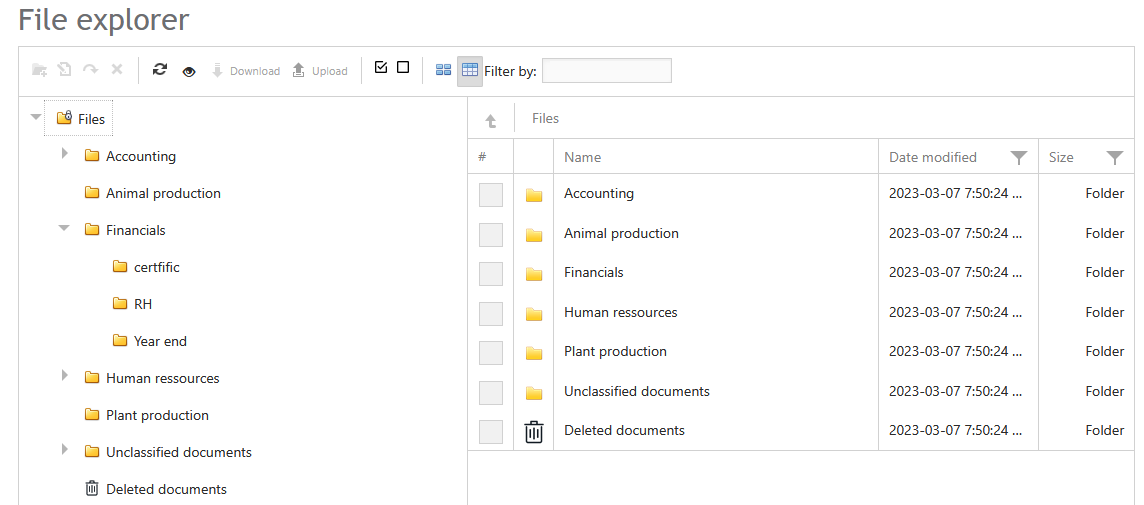
The folder Accounting is the smart binder that Aleop uses to automatically classify validated accounting documents, organizing them by fiscal year and partner. This feature optimizes document management and ensures quick access to essential information.
The function Filter by allows you to search within a folder and its subfolders using a keyword. It identifies all file or subfolder names containing the entered term, making it easier to navigate through large directory structures.
For its part, the icon shaped like aneye allow you to quickly preview the selected document in the image carousel. The display modes Icons and List offer two visual layouts for the binder: one with large thumbnails or a list view, similar to the layout in Windows Explorer.
The folders are structured as follows:
- Accounting
- Fiscal year
- Partner
- Purchases / Sales / Annual Documents / Account Statement
- Partner
- Fiscal year
Folder Creation
Folder creation is possible in certain sections of the panel Accounting. For example, it is possible to add a subfolder directly within the main folder Accounting, provided that its name does not follow the format used for the company’s fiscal years (such as 2020 or 2023-2024), to avoid any confusion with the official structure.
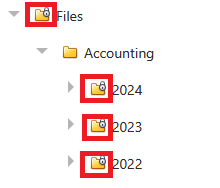
However, it is not possible to add a subfolder in the folders corresponding to a fiscal year, to a Partner or in the Files folder. These folders are locked: a lock icon  indicates that they cannot be renamed, moved, deleted, or modified by adding subfolders. Accounting documents remain in the binder, even if the transaction has been deleted in the accounting software.
Manual document upload
It is possible to add a document from your computer that has not been submitted through the Aleop process or received from other submission channels (scanner, email, EDI). To add a document from your computer to the explorer:
- Select a folder to add a document.
- Click Browse at the bottom right of the window.
- Select the document from your personal files.
- Click Upload.
When manually uploading files to the Aleop folder, certain extensions are not accepted for security and compatibility reasons. Here is the list of restricted formats: .exe, .dll, .bat, .zip, .rar. Make sure to upload only supported files to avoid any errors.
Renaming a document
To rename a document or folder, right-click on the item and select the option Rename  then enter the appropriate new name. Make sure to use a descriptive name that reflects the content to facilitate organization and future searches. Note that certain restrictions may apply regarding the use of special characters or name length, depending on the system used.
Deleting a document
To delete a document, right-click on the item and select the option Delete  . The document will then be moved to the section Deleted documents
  , where you can either permanently delete it or restore it to its original location.
Only documents that have been manually uploaded can be deleted from this section.
Also, any files deleted during document classification, validation, or review are automatically moved to the folder’s trash.
File Search
The search function allows you to quickly find a file across all the company's folders, including those accessible in the explorer. It covers both transactions (purchases/sales) and all other uploaded files.
Unlike the section Transaction Search which can be found on the Tracking Screen, the search is performed using the file name, directory name, or creation date.
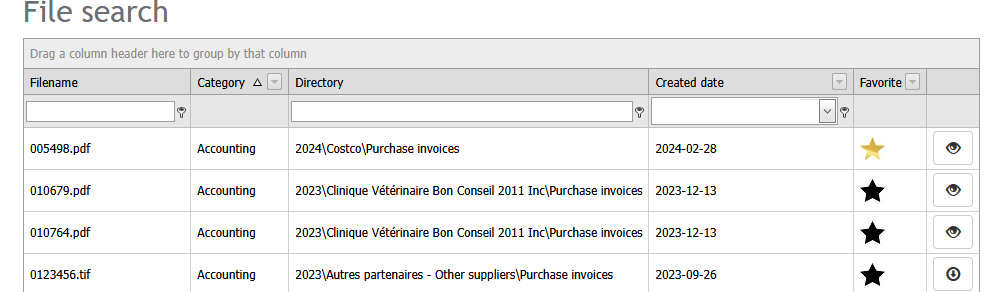
- The created date is the document date for OCR documents or the date the document was uploaded to Aleop for uploaded files.
- The column Favorite
 allows you to identify your favorite documents so you can find them quickly.
 - The PDF files can be previewed by clicking on the eye-shaped icon.
 , with the option to download them afterward.
 - The TIF files can only be downloaded directly to your computer by clicking on the downward arrow icon.
 .
.
 allows you to identify your favorite documents so you can find them quickly.
 , with the option to download them afterward.
  .
.The folders Accounting, Documents to be filed, Finance, Animal Production, Plant Production, and Human Resources are created by default. You will then need to create subfolders within these categories to establish an organized filing hierarchy.
Best practices
- Create a digital folder for each record representing a category, document, or distinct unit of information to efficiently structure your filing system.
- Keep subfolder titles simple and concise.
Annotation Search
The annotation search allows you to search by text, mention, or date for annotations from all users and all related elements.
Access this feature through the menu File Explorer > Annotation Search.
For complete details on annotation search, refer to the section Annotation search of our dedicated guide here.